017 how-to: navigate Android Studio’s panes
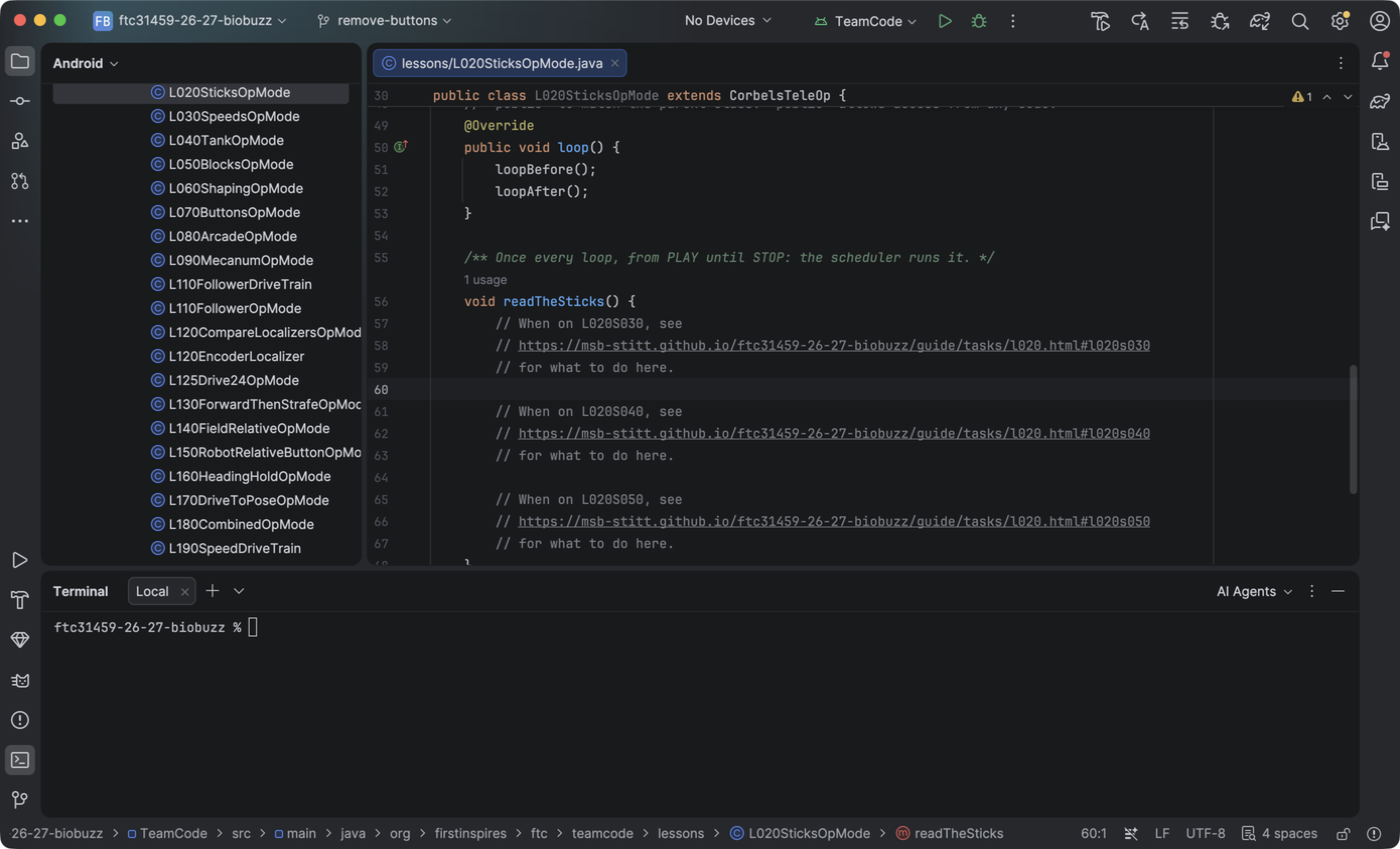
A video shows every part of this page: https://msb-stitt.github.io/ftc31459-26-27-biobuzz/dev/videos/h017.mp4.
Android Studio’s window has these parts:
Toolbar, along the top: runs the code and starts Android tools.
Editor, in the middle: where you read and write the code.
Tool windows, such as Project on the left and Terminal below: each is a pane that does one kind of job.
Tool window bar, the buttons down each side: each one opens or closes a tool window.
Status bar, along the bottom: what Android Studio is doing. Its left end is the path to the open file. Left-click a folder in the path to see what it holds.
Click.
Left-click the folder button at the top of the left side.
Left-click it again.
Left-click the Terminal button, near the bottom of the left side.
Check.
The first left-click closes the Project window, and the second opens it again.
The Terminal opens below the editor, and its button is lit.
Drag.
Left-click and drag the edge between Project and the editor to the right.
Left-click and drag the top edge of the Terminal up or down.
Check.
Each name in the Project window shows in full.
The Terminal grows or shrinks.
Theme.
Left-click the gear at the top right, then Theme….
Left-click Islands Light.
Check.
Android Studio turns light. To go back, pick Islands Dark the same way.
The pictures in this book use Islands Dark.
View.
Left-click the name at the top of the Project pane, then Project.
Do it again and pick Project Source Files, then again and pick Android.
Check.
Project shows every file in the project’s folder, even the book.
Project Source Files shows only the folders that hold code.
Android shows three parts:
FtcRobotController, where the FTC robot platform code lives. It has features that make robots easy to program.
TeamCode, where our code lives.
Gradle Scripts, the scripts that build and test the code.
Find.
In Project, open TeamCode, then src, main and java. org.firstinspires.ftc.teamcode may open with java. If it stays closed, open it too.
In Android, open TeamCode, then java and org.firstinspires.ftc.teamcode.
Check.
Each way ends at the same folders, among them lessons and mytry.
Sync.
Left-click File, then Sync Project with Gradle Files.
Left-click the Build button, the hammer near the bottom of the left side, then the Sync tab.
Check.
The Sync tab shows a green check by the project’s name.
Syncing makes Gradle, inside Android Studio, figure out the steps it takes to build the code. Sync again after you get new code from the internet.
Target.
Left-click the list just left of the green triangle at the top, then TeamCode.
Check.
The list reads TeamCode.
Build.
Left-click the hammer at the top right of the toolbar.
Left-click the Build Output tab in the Build pane.
Check.
The tab shows a green check and
BUILD SUCCESSFUL.
When the build fails, the mark is red. Open the list under it to find the file, what is wrong, and
the line, as ';' expected :4.