070 lesson: read the buttons
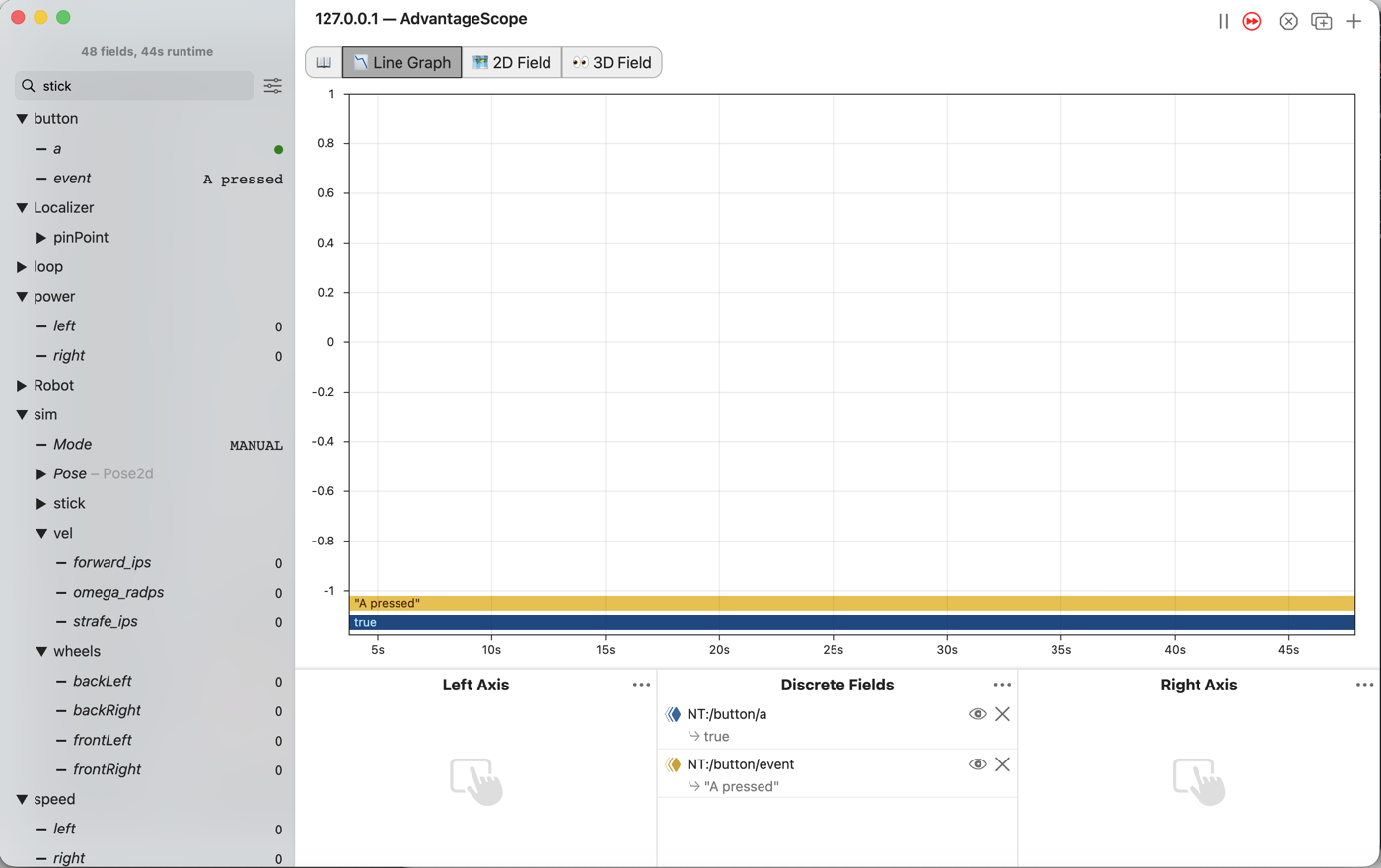
Read the A button, say the moment it goes down and the moment it comes up, and read both sticks sideways. The robot drives as it did in L060 the whole time.
Before you start.
L060 is done, so
mytryholdsL060ShapingOpMode.AdvantageScope is installed on the same laptop, and a gamepad is plugged into the laptop.
The robot and the Driver Station for the last step.
the steps
L070S010: copy the starter into mytry
Copy. In lessons, click L070ButtonsOpMode once and copy it. Click mytry once and paste.
In the Copy Class box, click OK. If Android Studio asks whether to add the file to Git,
click Add.
Check.
mytryholdsL070ButtonsOpMode, and the new file is open.
L070S020: switch your copy on
Change. Delete the line @Disabled, under the comment that names this step.
Check.
Under the step’s comment, the next line reads
// 'public' so the robot can run this OpMode. 'public' allows access from any code.
L070S030: read the A button
A stick is a number. A button is only down or up, so Java keeps it as a boolean: true when
it is down, false when it is up.
Change. In driveFromTheSticks(), find the comment that names this step, below the four
setPower lines. Under it, type boolean buttonA = gamepad1.a. The list offers a, marked
boolean.
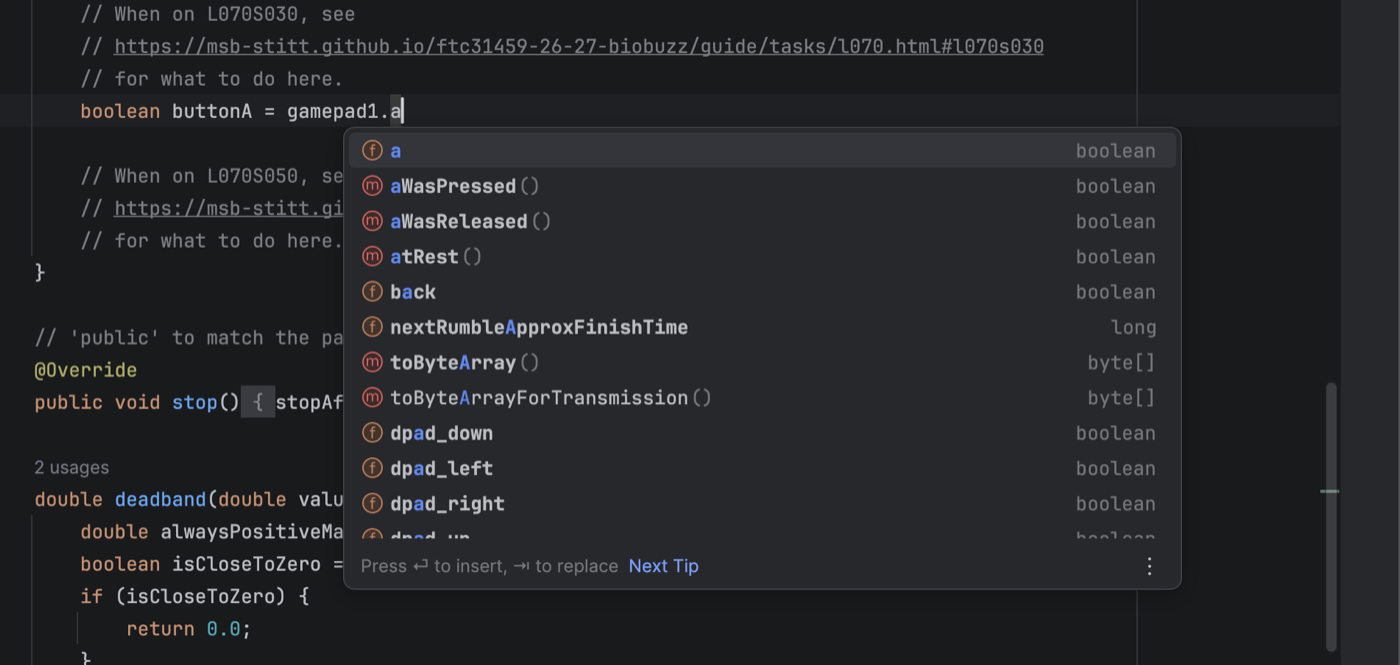
Pick a, and finish the lines:
        // When on L070S030, see
        // https://msb-stitt.github.io/ftc31459-26-27-biobuzz/guide/tasks/l070.html#l070s030
        // for what to do here.
        boolean buttonA = gamepad1.a;
        Tracker.publish("button/a", buttonA);
Simulator. In the Terminal, run:
./gradlew :TeamCode:simRun --args="mytry.L070ButtonsOpMode --pad"
AdvantageScope. Connect to the simulator as in L020. Open the button folder, and drag a
into Discrete Fields.
Check.
button/ais a red dot.Press A and hold it, and the dot turns green.
Let go, and it turns red again.
L070S040: remember last loop’s button
buttonA says whether A is down in this loop. To know the moment it changed, the code also needs
to know whether it was down in the loop before. A variable made inside driveFromTheSticks() is
gone when it ends, so this one goes outside it.
Change. Press Ctrl+C in the Terminal to stop the simulator. Scroll to the top of the class, and find the comment that names this step. Under it, type:
    // When on L070S040, see
    // https://msb-stitt.github.io/ftc31459-26-27-biobuzz/guide/tasks/l070.html#l070s040
    // for what to do here.
    boolean previousButtonA;
A variable made here is a field. It keeps its value from one loop to the next. A boolean
field starts out false.
Check.
The line has no red underline.
L070S050: say when the button changes
Change. Back in driveFromTheSticks(), find the comment that names this step. Under it, type:
        // When on L070S050, see
        // https://msb-stitt.github.io/ftc31459-26-27-biobuzz/guide/tasks/l070.html#l070s050
        // for what to do here.
        if (buttonA != previousButtonA) {
            if (buttonA) {
                Tracker.publish("button/event", "A pressed");
            } else {
                Tracker.publish("button/event", "A released");
            }
        }
        previousButtonA = buttonA;
!= means “is not the same as”. The first if is true only on the loop where the button changed.
The second one says which way it changed. else is what runs when the if is false. The last line
saves this loop’s button for the next loop.
The text in quotes is a String. Tracker writes it down the same way it writes a number.
Simulator. Run the same command again, and connect AdvantageScope.
AdvantageScope. Drag event from the button folder into Discrete Fields. Until A has
been pressed once, event is crossed out, because nothing has been written to it yet.
Holding A down does not write A pressed again. event only changes on the loop the button
changed.
Check.
Press A and hold it.
button/aturns into a green dot, andeventreadsA pressed.Let go. The dot turns red, and
eventreadsA released.
L070S060: read the sticks sideways
Each stick also moves left and right. Pushed right, it reads above 0.0. Pushed left, it reads below 0.0. Tank drive does not use these yet. Later lessons drive sideways with them.
Change. Press Ctrl+C in the Terminal to stop the simulator. Near the top of
driveFromTheSticks(), find the comment that names this step, under the lines that read the sticks
up and down. Under it, type:
        // When on L070S060, see
        // https://msb-stitt.github.io/ftc31459-26-27-biobuzz/guide/tasks/l070.html#l070s060
        // for what to do here.
        double leftStickX = gamepad1.left_stick_x;
        Tracker.publish("stick/leftX", leftStickX);
        double rightStickX = gamepad1.right_stick_x;
        Tracker.publish("stick/rightX", rightStickX);
Simulator. Run the same command again, and connect AdvantageScope.
Check.
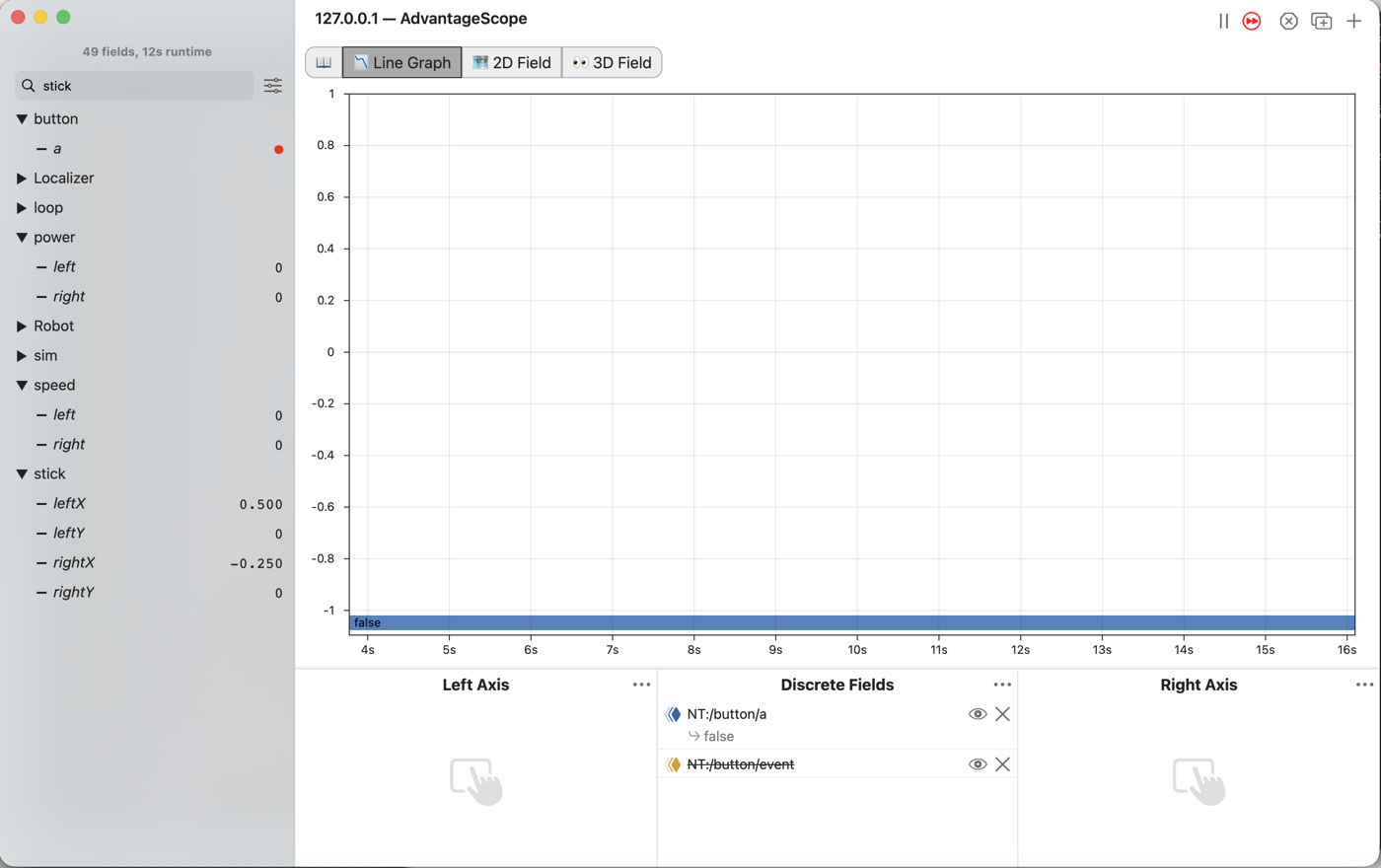
Push the left stick to the right, and
stick/leftXgoes above 0.0.Push the right stick to the left, and
stick/rightXgoes below 0.0.speedandpowerstay at 0.0, and the robot does not move.
L070S070: watch the buttons on the robot
Robot. Stop the simulator. Send the code, run L070 Buttons from the Driver Station, and watch
it in AdvantageScope.
Check.
Press A, and in AdvantageScope
button/eventreadsA pressed.Let go, and it reads
A released.The robot still drives with the sticks as it did in L060.
No gamepad. --args="mytry.L070ButtonsOpMode --a=true" holds A down for the whole run, so
event reads A pressed and never changes; the picture at the top was taken that way. A release
needs a gamepad. --left_stick_x=0.5 --right_stick_x=-0.25 holds the sticks sideways for the last
picture. The tests press and let go of A without a gamepad.
If it didn’t, and event reads A pressed but never A released, the last line,
previousButtonA = buttonA;, is missing. The test fails with letting go says so.
If it didn’t, and event reads A pressed when A is let go, the two Tracker.publish lines
are swapped.
What you just did. A boolean is either true or false. A field keeps a value between loops,
and comparing this loop with the last one finds the moment something changed. That is how a
button press can do one thing once, rather than once every loop it is held.
Where next. L080 drives the robot with one stick for going and one for turning.