013 how-to: get started on Ubuntu
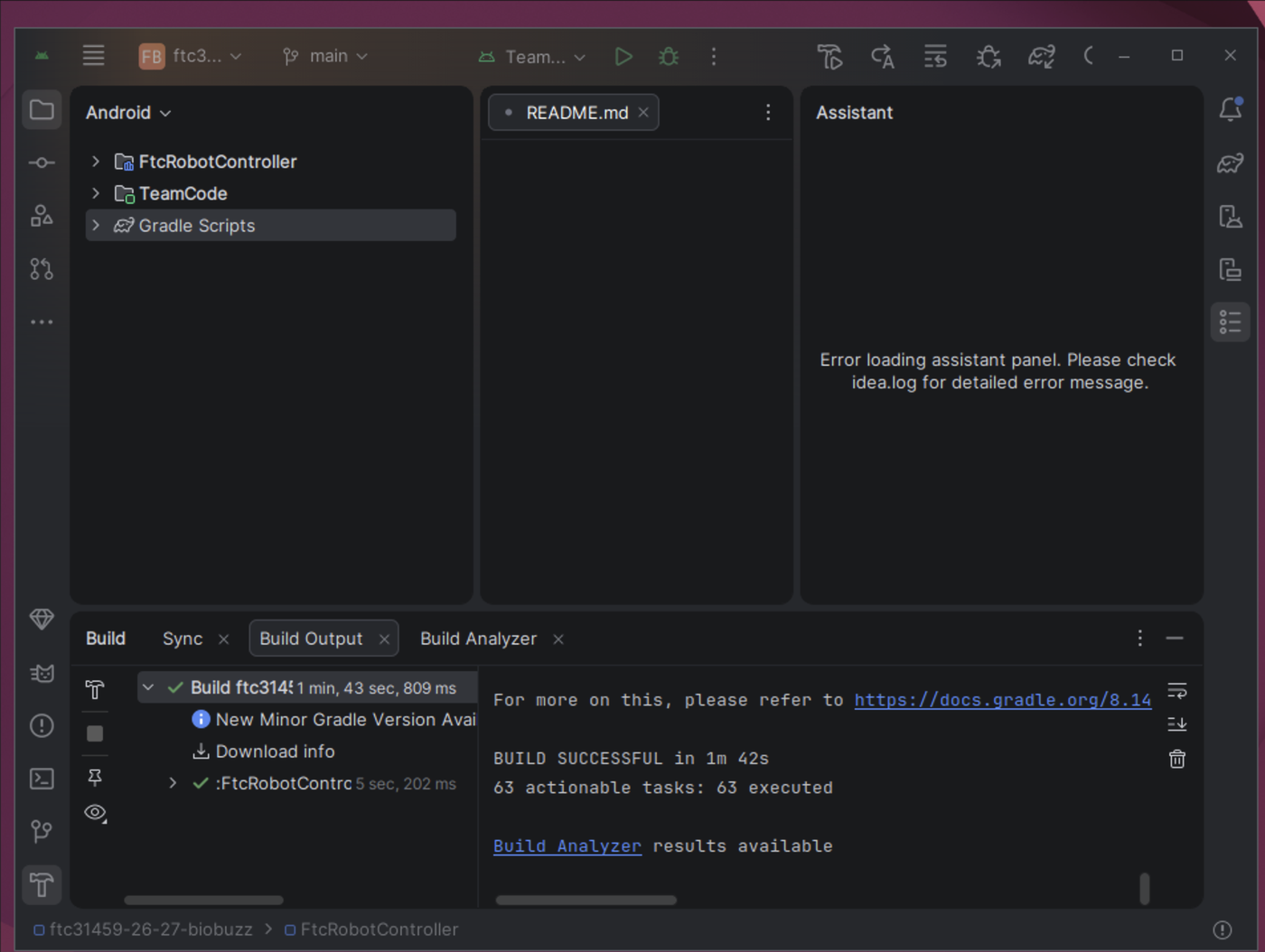
Put the robot’s code on an Ubuntu laptop and build it. After this, every lesson starts in Android Studio with the project open.
the steps
H013S010: install Android Studio
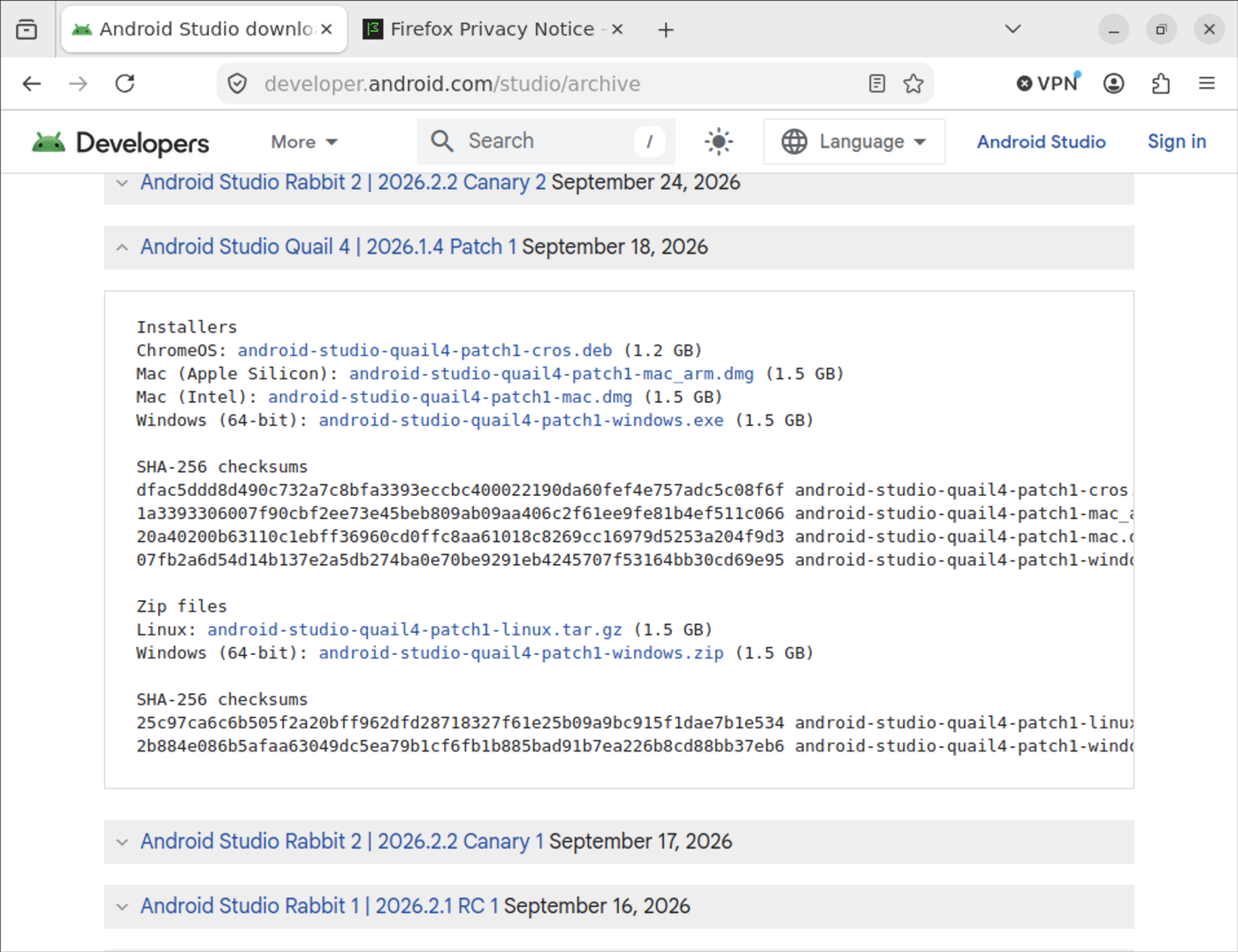
The robot’s code is written in Android Studio. The team uses one version of it, Quail 4, so everyone sees the same screens. It is not the newest, so it comes from the page of older versions.
Download.
Open https://developer.android.com/studio/archive and click I agree under the terms.
Click Android Studio Quail 4 | 2026.1.4 Patch 1 to open it.
Click
android-studio-quail4-patch1-linux.tar.gz. It is about 1.5 GB.
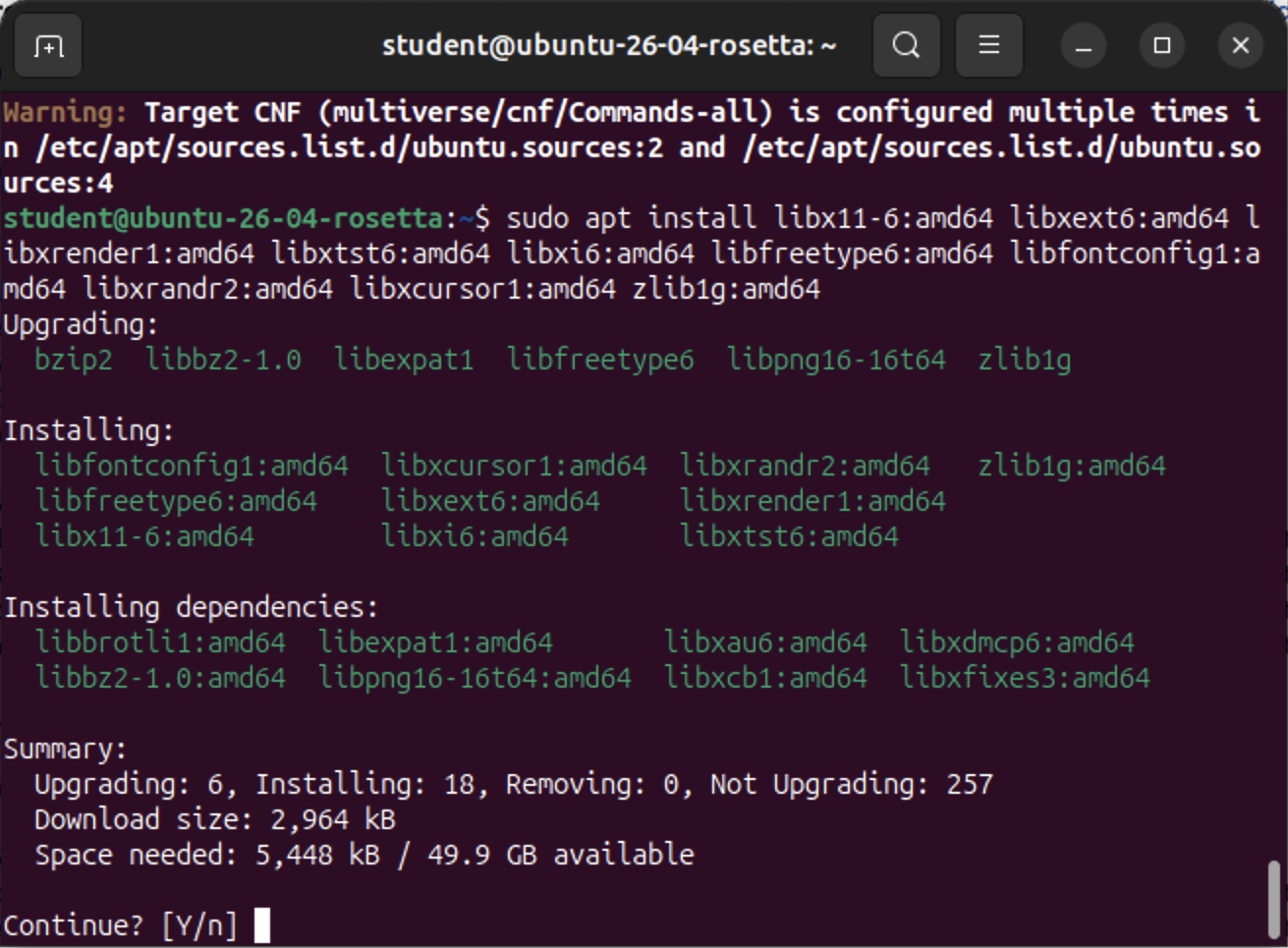
Install. Open Terminal and type these two lines, then your password when sudo asks:
sudo apt install libx11-6:amd64 libxext6:amd64 libxrender1:amd64 libxtst6:amd64 libxi6:amd64 libfreetype6:amd64 libfontconfig1:amd64 libxrandr2:amd64 libxcursor1:amd64 zlib1g:amd64
sudo tar -xzf ~/Downloads/android-studio-quail4-patch1-linux.tar.gz -C /opt
Then start Android Studio with /opt/android-studio/bin/studio. Leave that Terminal open while
you work.
Check.
Android Studio starts and asks to Help improve Android Studio. Click Don’t send.
H013S020: let Android Studio fetch what it needs
The first time it starts, Android Studio’s setup wizard downloads the Android tools the code is built with.
Setup.
Click Next on Welcome.
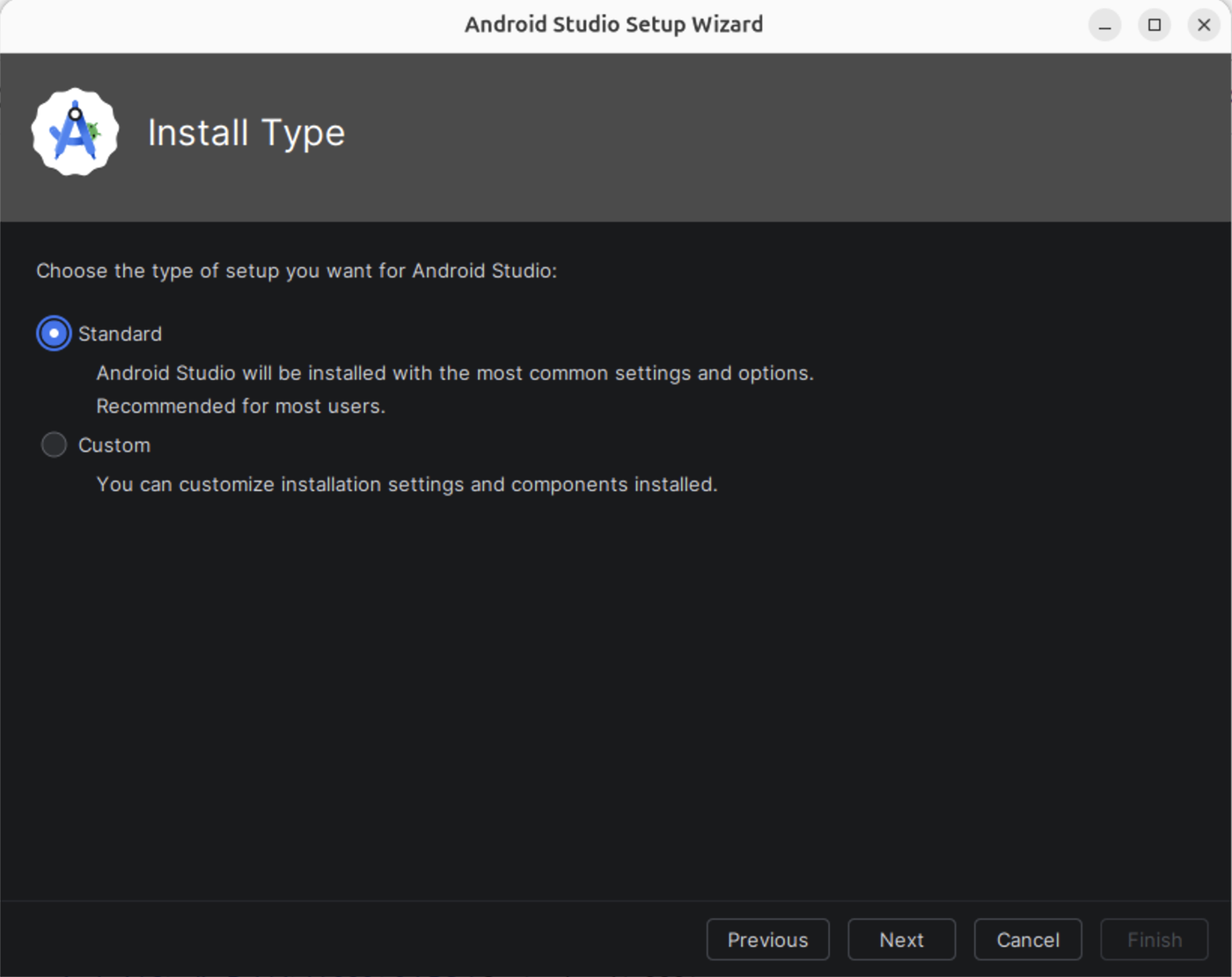
Pick Standard and click Next.
Click Next on Verify Settings.
Click each license on the left, pick Accept, and click Next.
A page about KVM and the emulator comes next. Click Next.
Wait while it downloads, then click Finish.
Check.
The last page of the wizard reads Android SDK is up to date.
Welcome to Android Studio opens, with New Project, Open and Clone Repository.
If a note says Rabbit 1 available, leave it. The team stays on Quail 4.
H013S030: install AdvantageScope
AdvantageScope draws what the robot is doing: where it is on the field, and graphs of its numbers.
Download. Open https://github.com/Mechanical-Advantage/AdvantageScope/releases/tag/v26.0.2.
Under Assets, click advantagescope-linux-x64-v26.0.2.deb.
Install. In Terminal, type sudo apt install ~/Downloads/advantagescope-linux-x64-v26.0.2.deb.
Then find AdvantageScope in the app grid and start it.
Check.
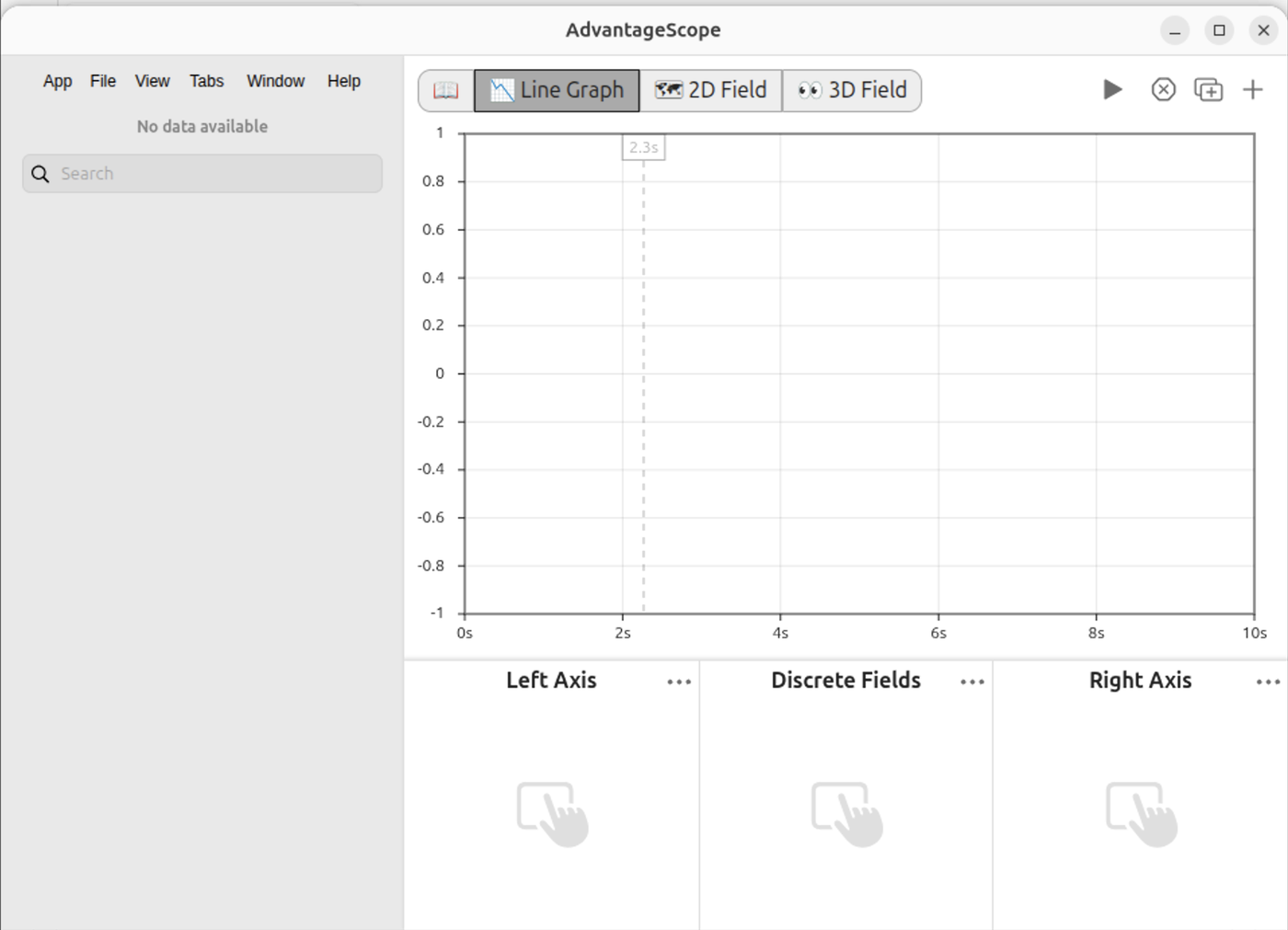
AdvantageScope opens on its Line Graph tab, with No data available on the left.
H013S040: get the project
The robot’s code lives on GitHub. Android Studio copies it to the laptop with a tool called git.
Git.
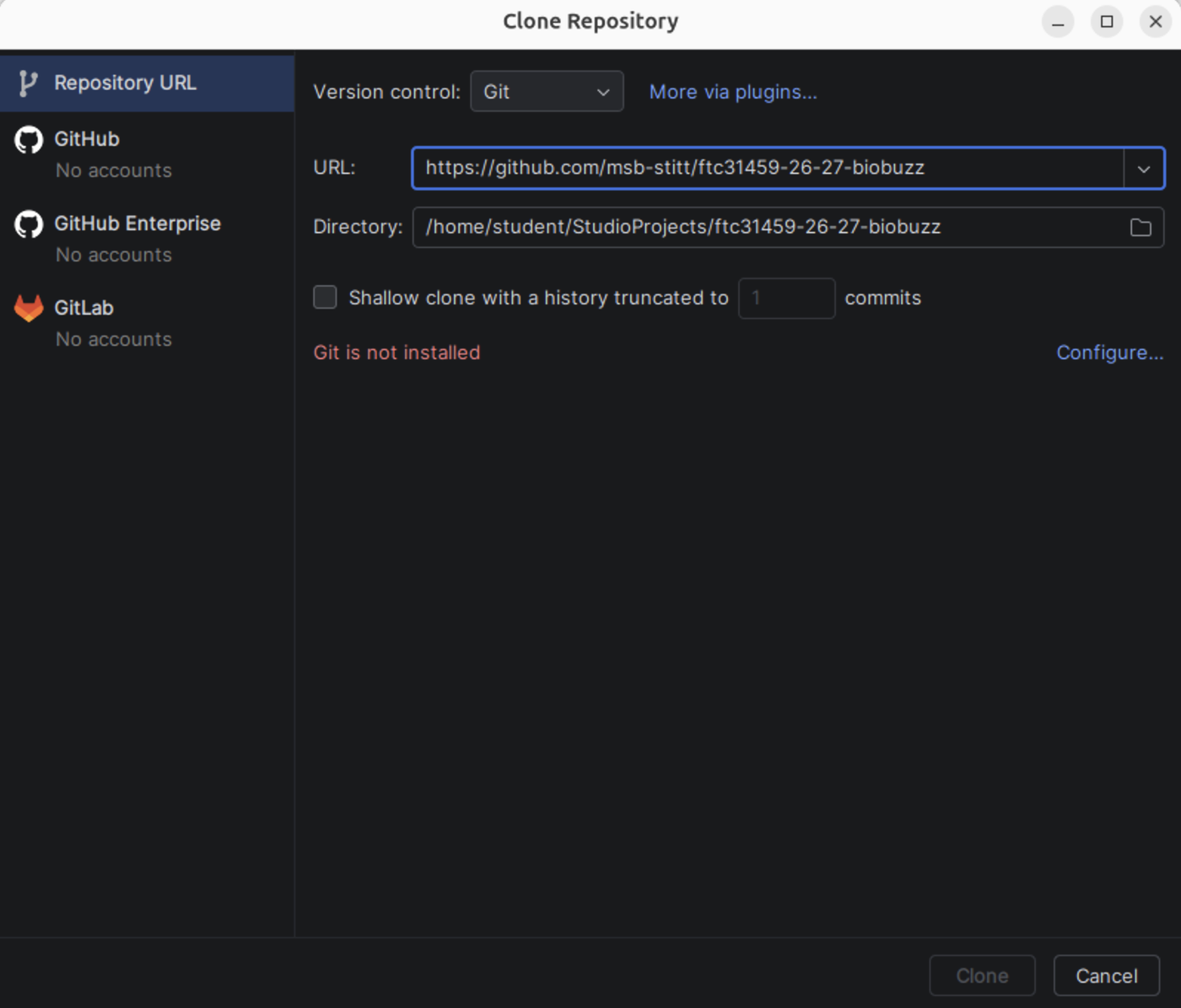
On Welcome to Android Studio, click Clone Repository. It says Git is not installed. Close the box.
In Terminal, type
sudo apt install git.Close Android Studio, and start it again with
/opt/android-studio/bin/studio.
Clone.
On Welcome to Android Studio, click Clone Repository.
Into URL, type
https://github.com/msb-stitt/ftc31459-26-27-biobuzz. Leave Directory as it is.Click Clone.
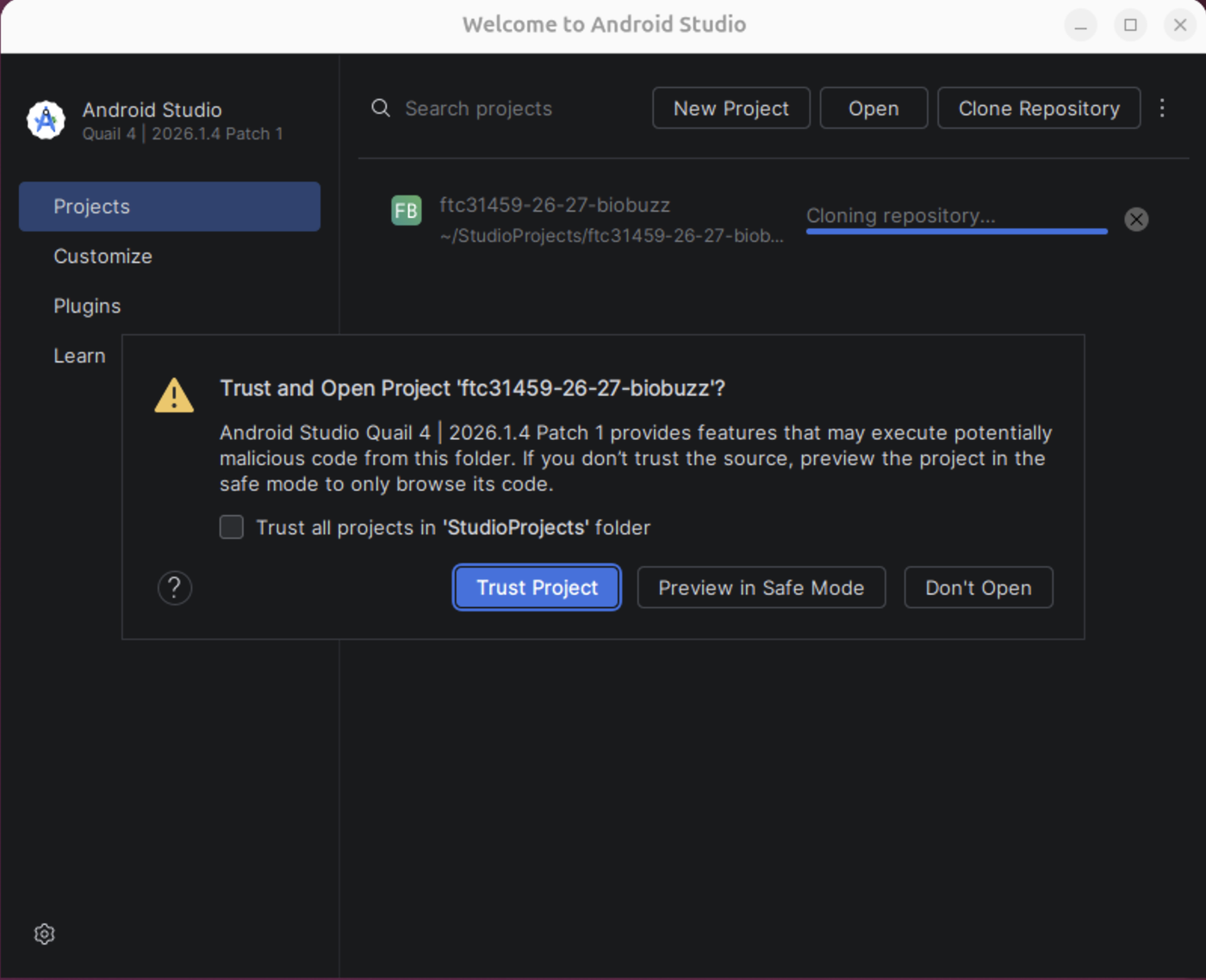
Trust. When it asks Trust and Open Project, click Trust Project.
Check.
The project opens, and the Project window lists
FtcRobotControllerandTeamCode.
H013S050: answer what Android Studio offers
While the project loads, Android Studio reads it with Gradle, the tool that builds the code. This is called a sync. The first sync downloads Java 17 and more, and takes a few minutes.
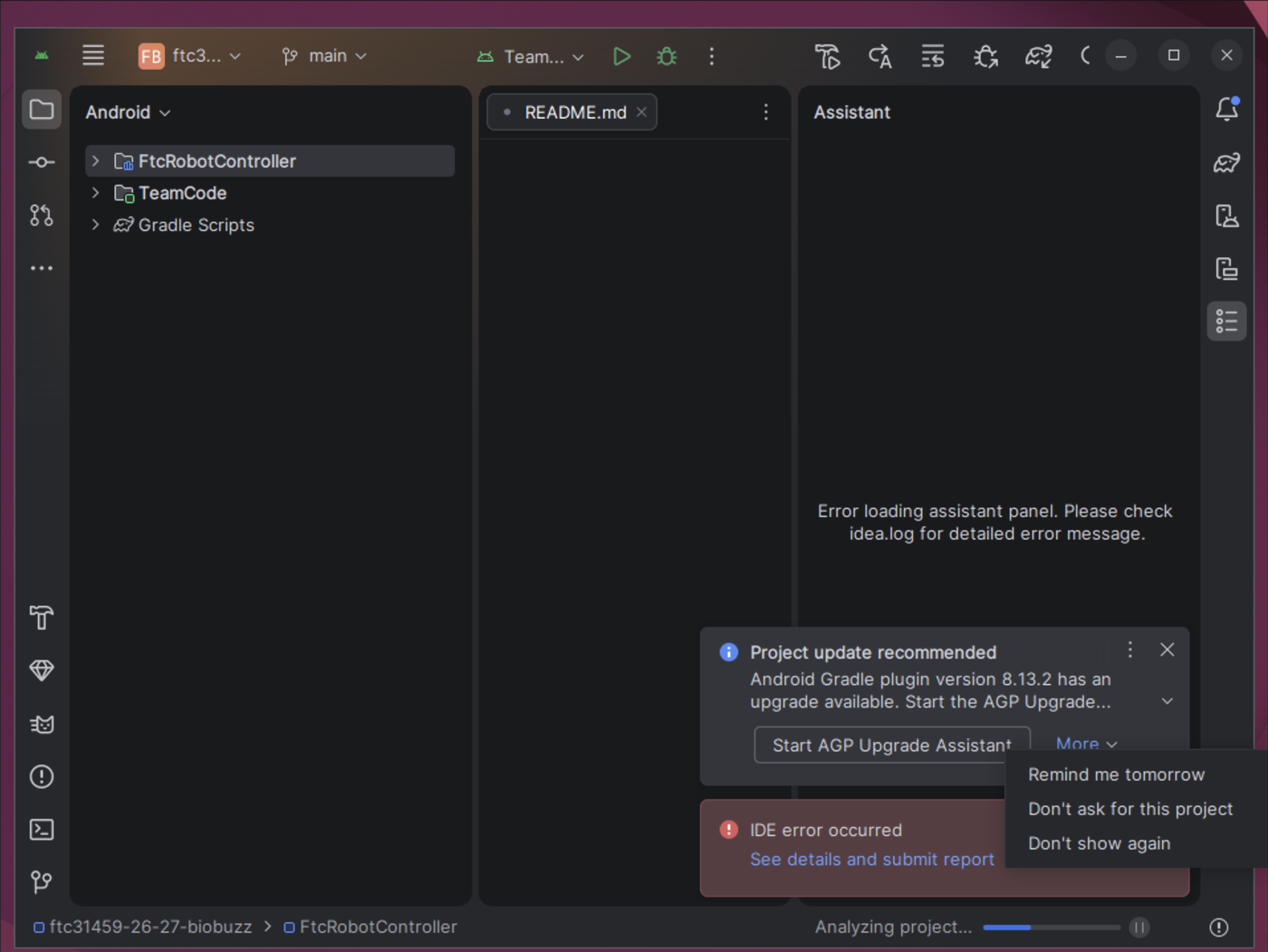
Answer. Notes pop up in the bottom right while it works. Answer each one like this:
Agent Mode now available: click Do not show again. The lessons do not use an AI helper.
Project update recommended, Android Gradle plugin version 8.13.2 has an upgrade available: click More, then Don’t ask for this project. The project needs version 8.13.2, so do not upgrade it.
Check.
The Build window’s Sync tab has a green tick beside the project.
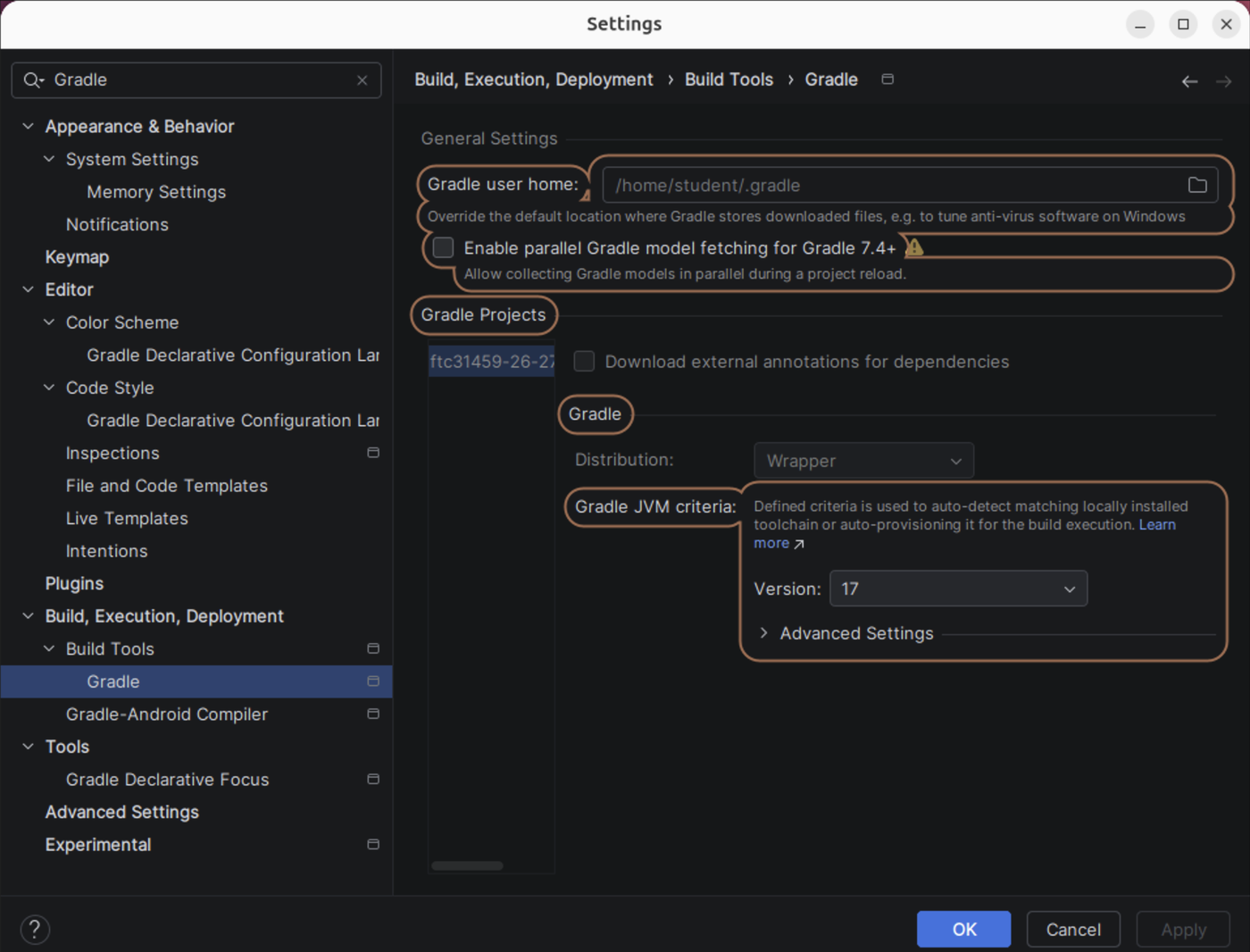
Open File → Settings. Type
Gradlein its search box and click Gradle under Build Tools. Under Gradle JVM criteria, Version reads17.
H013S060: build the code
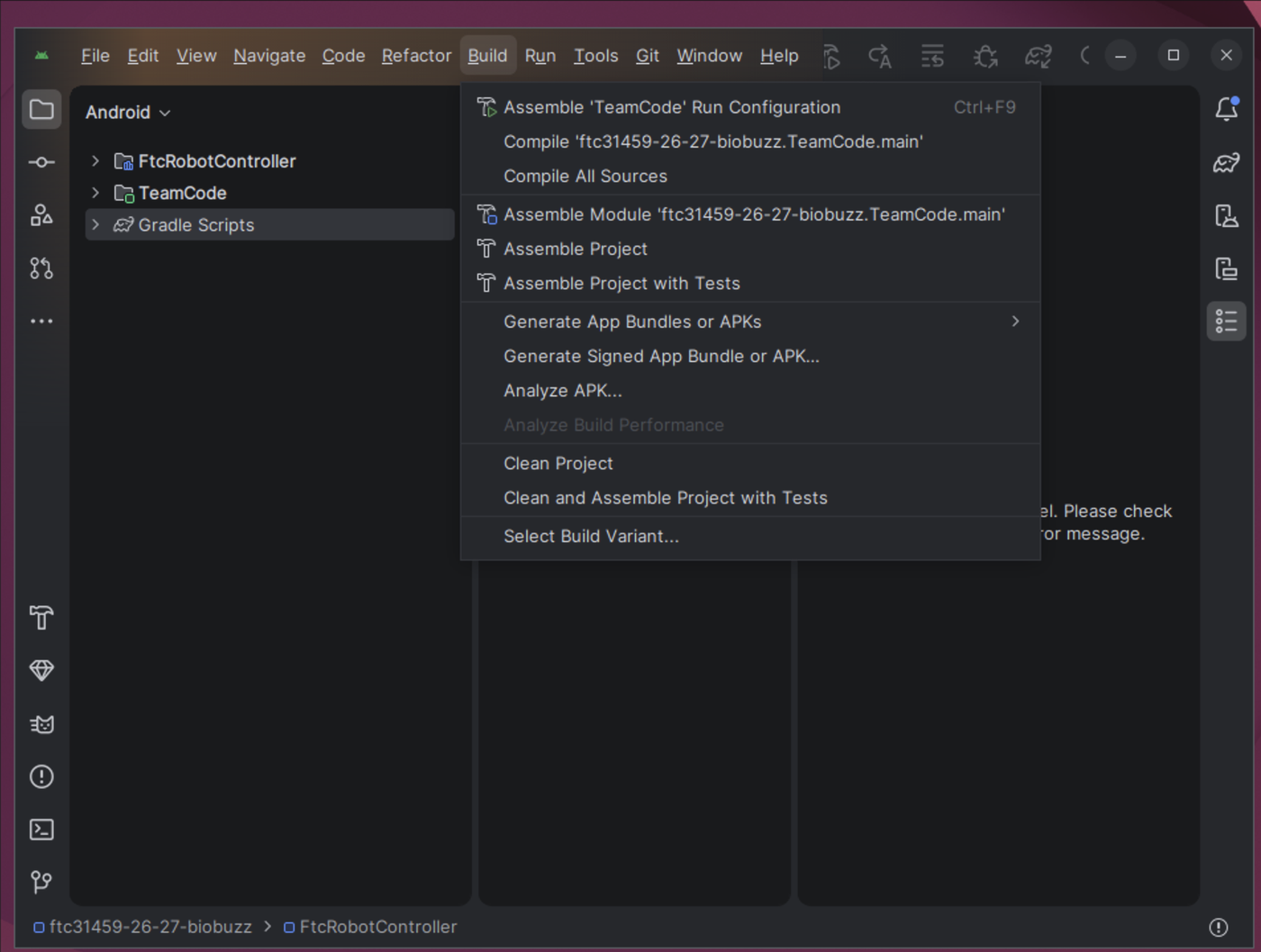
Build. Click Build → Assemble Project. The first build takes a few minutes.
Check.
The Build window’s Build Output tab ends with BUILD SUCCESSFUL and 63 actionable tasks: 63 executed.