170 lesson: press Y and the robot drives itself there
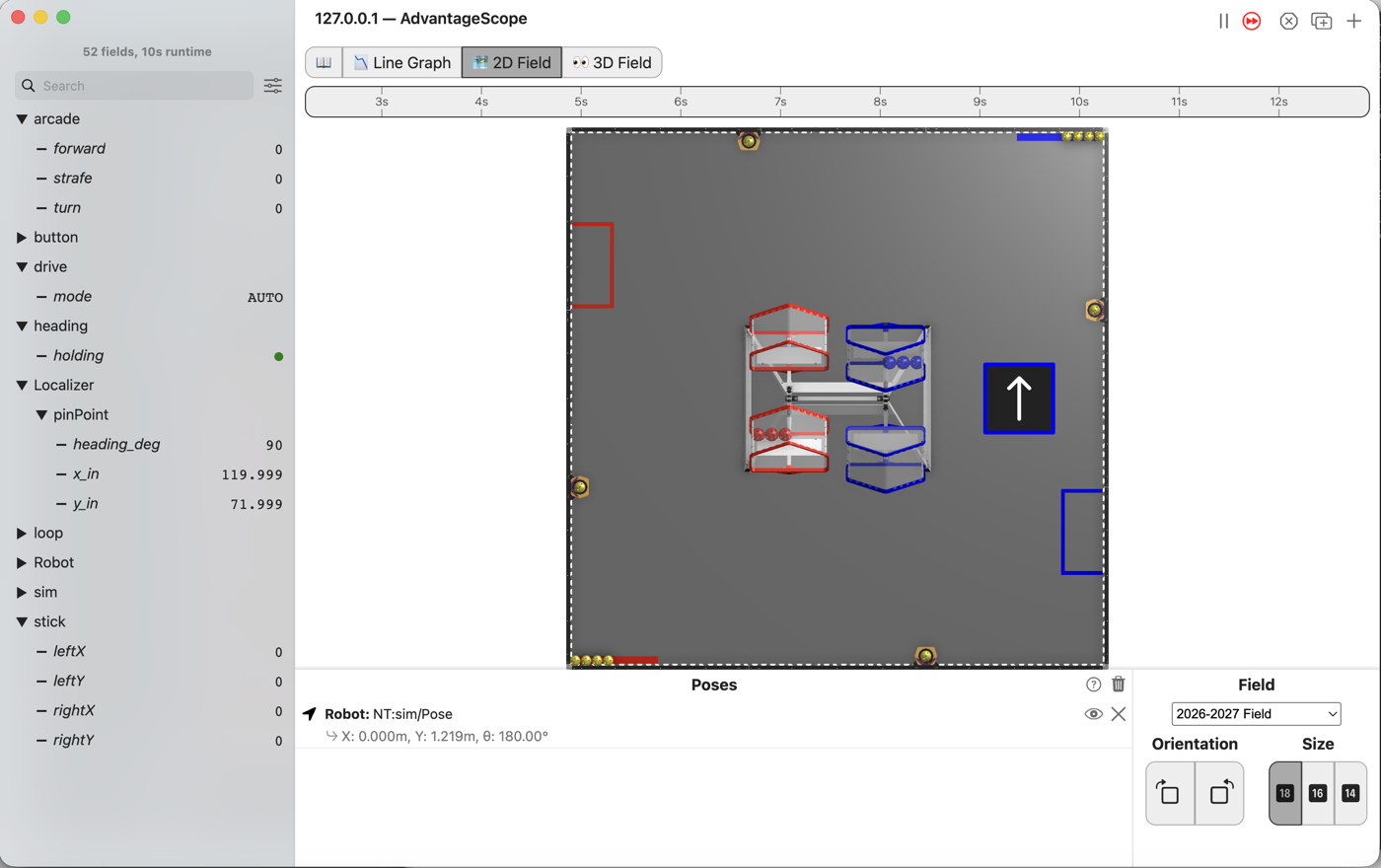
Press Y and the robot drives itself to a spot on the field. Push any stick and the driver has it back at once.
the steps
L170S010: copy the starter into mytry
Copy. In lessons, click L170DriveToPoseOpMode once and copy it. Click mytry once and
paste. In the Copy Class box, click OK. If Android Studio asks whether to add the file to
Git, click Add.
Check.
mytryholdsL170DriveToPoseOpMode, and the new file is open.
L170S020: switch your copy on
Change. Delete the line @Disabled, under the comment that names this step.
Check.
Under the step’s comment, the next line reads
// 'public' so the robot can run this OpMode. 'public' allows access from any code.
L170S030: Y schedules the drive
The starter is L160’s finished OpMode, moved around a little. Near the top are two new fields.
target is the pose, at x 120 in, y 72 in and heading 90°. driveToTheTarget is a second
command, besides the one that drives from the sticks.
start() builds both. The sticks’ command now says .requiring(drivetrain): it needs the
drivetrain. driveToTheTarget needs it too. Only one command can have the drivetrain at a time, so
the new one sets the sticks’ command aside. SUSPEND means the sticks’ command comes back when the
new one ends.
driveToTheTarget is made of four methods near the bottom of the file. One runs when it starts,
one every loop, one says when it is done, and one runs when it ends. It is done when
driverWantsControl() says a stick is pushed.
Change. In loop(), find the comment that names this step. Under it, type:
        // When on L170S030, see
        // https://msb-stitt.github.io/ftc31459-26-27-biobuzz/guide/tasks/l170.html#l170s030
        // for what to do here.
        boolean buttonY = gamepad1.y;
        boolean buttonYJustPressed = buttonY && !previousButtonY;
        if (buttonYJustPressed) {
            Scheduler.schedule(driveToTheTarget);
        }
        previousButtonY = buttonY;
This is L070’s way of finding the loop a button goes down, for Y. && means “and”, and ! means
“not”, so buttonYJustPressed is true only on the loop Y goes down. Then Scheduler.schedule
starts driveToTheTarget. Holding Y does not start it again.
Simulator. In the Terminal, run:
./gradlew :TeamCode:simRun --args="mytry.L170DriveToPoseOpMode --y=true"
AdvantageScope. Connect to the simulator as in L020, click 2D Field, and open the
Localizer folder, then pinPoint. Open the drive folder too.
Check.
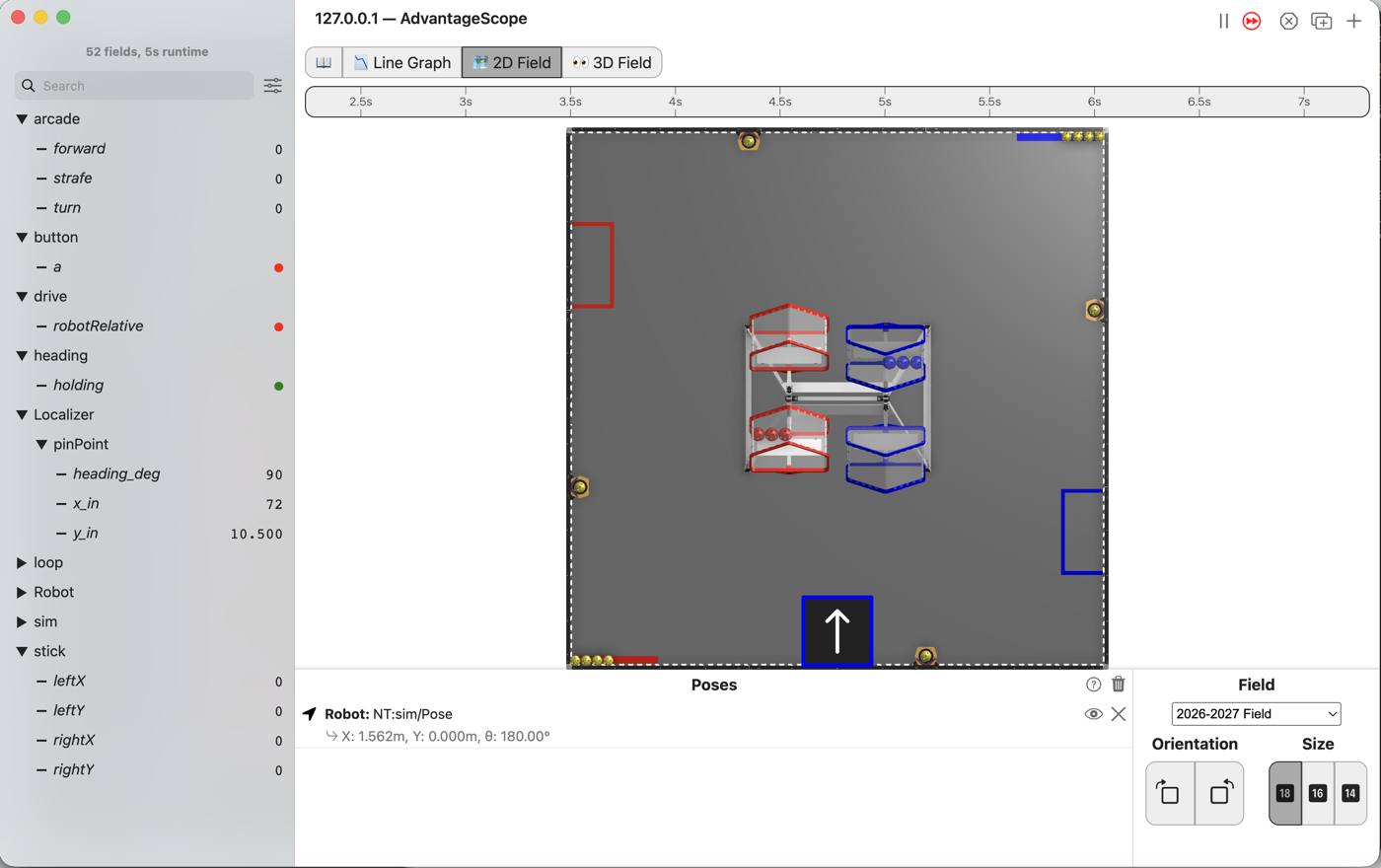
modereads AUTO.The robot does not move:
x_instays at 72 andy_inat 10.5.
The drive to the target has the drivetrain, but nothing has told the follower where to go yet.
L170S040: tell the follower where to go
Change. Press Ctrl+C in the Terminal to stop the simulator. In startDrivingToTheTarget(), find
the comment that names this step. Under it, type:
        // When on L170S040, see
        // https://msb-stitt.github.io/ftc31459-26-27-biobuzz/guide/tasks/l170.html#l170s040
        // for what to do here.
        follower.hold(target);
        drivetrain.releaseCommandedWheels();
follower.hold tells the follower to drive to target and stay there. Since L110 the sticks set
the wheels. While they do, the follower is ignored. releaseCommandedWheels() lets go of the
wheels, so the follower drives them.
When a stick is pushed, driveToTheTarget is done. giveTheDriverTheWheels() stops the follower,
and the sticks’ command comes back. It drives from the next loop on.
Simulator. Run the same command again, and connect AdvantageScope.
Check.
modereads AUTO.The robot drives right and up the field and stops at
x_in120 andy_in72, its nose still pointing up the field. It may show 119.999 and 71.999.
L170S050: send it and then take it back
Robot. Stop the simulator. Send the code, and run L170 Drive To Pose from the Driver Station.
Check.
Press Y once and let go. The robot drives itself toward the middle of the field, right of where it started.
Press Y again and push the left stick while it is on its way. It stops going there, and drives the way the stick says.